Web IDE
This guide walks you through the full lifecycle of an Actor using the web IDE in Apify Console: create an Actor from a code template, build it, configure its input, and run it in the cloud.
Prerequisites
To complete this tutorial, you need an Apify account. If you don't have it yet, sign up for free.
Step 1: Create your Actor
To create an Actor from a code template:
- Log in to Apify Console.
- In the left-side panel, go to Development > My Actors.
- Click Develop new.
- Under Select a code template, choose one of the available options. For this tutorial, let's use Quick start: Crawlee + Cheerio.
To find a template that best suits your needs, browse the full list of templates.
Once you choose the template, your Actor is automatically named and you're redirected to its page.
Step 2: Explore the Actor
The provided boilerplate code utilizes the Apify SDK combined with Crawlee, Apify's popular open-source Node.js web scraping library.
By default, the code crawls the apify.com website, but you can change it to any website.
Crawlee is an open-source Node.js library designed for web scraping and browser automation. It helps you build reliable crawlers quickly and efficiently.
Step 3: Build the Actor
The next step it to build the Actor:
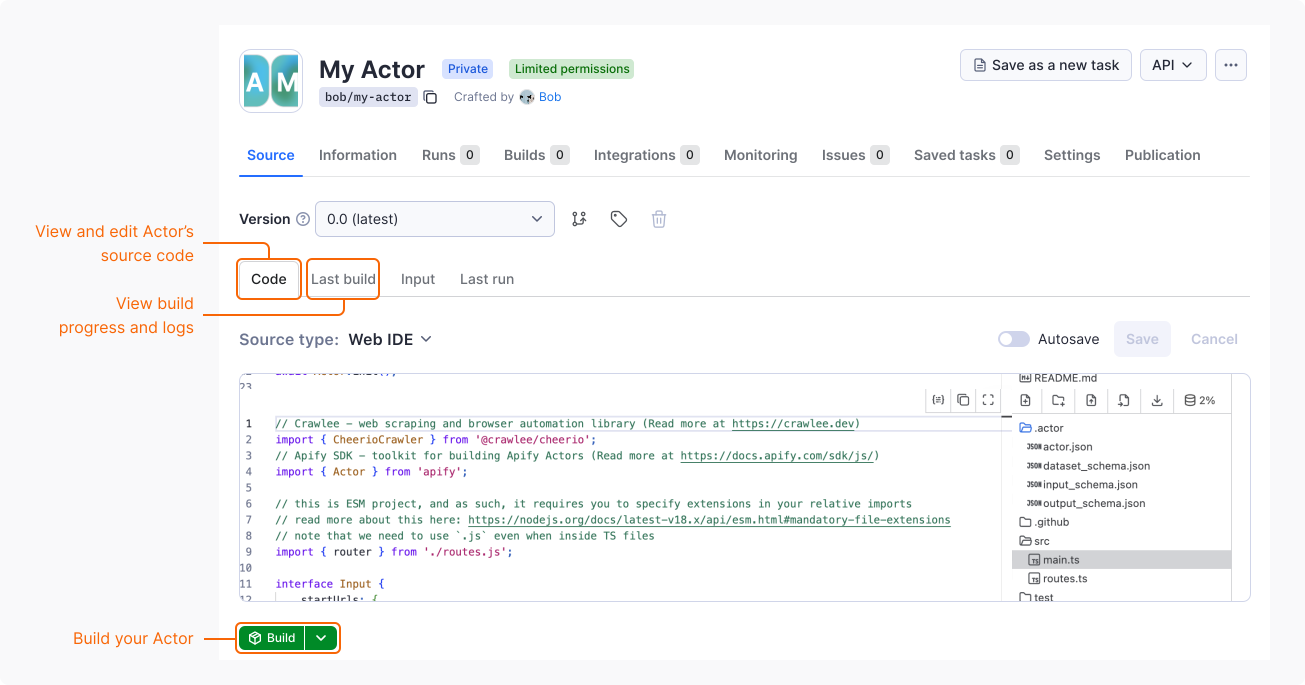
- Go to Source tab > Code.
- Click Build.
Once the build starts, you're redirected to the Last build tab. Here you can check the build progress and view Docker build logs.
Step 4: Run the Actor
Finally, it's time to run the Actor:
- Go to Source tab > Input.
- Set the Start URL to the URL you want to crawl or use the default value.
- (Optional) To customize the run, expand the Run options section. You can adjust the following options:
- Build – select the build version to run.
- Timeout – set the timeout for the run in seconds.
- Memory limit – allocate the memory for the run. For details, see Usage and resources.
- Maximum cost per run.
- Click Start.
Once the run starts, you can monitor its progress and view the logs in real-time. To view the results of the Actor's execution, go to the Output tab.
To stop the run, click Abort.
Step 5: Pull the Actor
To continue development locally, pull the Actor's source code to your machine.
Install apify-cli :
- macOS/Linux
- Other platforms
brew install apify-cli
npm -g install apify-cli
To pull your Actor:
-
Log in to the Apify platform
apify login -
Pull your Actor:
apify pull your-actor-nameOr with a specific version:
apify pull your-actor-name --version [version_number]As
your-actor-name, you can use either:- The unique name of the Actor (e.g.,
apify/hello-world) - The ID of the Actor (e.g.,
E2jjCZBezvAZnX8Rb)
- The unique name of the Actor (e.g.,
You can find both by clicking on the Actor title at the top of the page, which will open a new window containing the Actor's unique name and ID.
Step 6: It's time to iterate!
After pulling the Actor's source code to your local machine, you can modify and customize it to match your specific requirements. Leverage your preferred code editor or development environment to make the necessary changes and enhancements.
Once you've made the desired changes, you can push the updated code back to the Apify platform for deployment & execution, leveraging the platform's scalability and reliability.
Next steps
- Visit the Apify Academy to access a comprehensive collection of tutorials, documentation, and learning resources.
- To understand Actors in detail, read the Actor Whitepaper.
- Check Continuous integration documentation to automate your Actor development process.
- After you finish building your first Actor, you can share it with other users and even monetize it.